Document Templates for eSignature: The Complete Guide
 Vatsal GotiLast Updated: Oct 14, 2026
Key Takeaways: Document Templates
- An eSignature document template is a reusable version of a document you send often, with signature fields, signer roles and sending settings already in place.
- Templates save time, but their bigger value is consistency: every document goes out with the right wording, the right fields, the right routing and the right security settings.
- The best documents to templatize first are the ones you send most often and the ones where a mistake is most expensive.
- Good templates use role names instead of real people, keep required fields to a minimum and are tested before the team uses them.
- A template library needs an owner. Review it regularly and update templates the same day the underlying legal wording changes.
Document templates let you set up a document once and send it correctly every time. If you send the same kind of document more than a few times a month, you are probably rebuilding it more often than you need to. Someone opens last month's contract, changes the name, drags the signature boxes back into place, remembers (or forgets) to add a second signer, and sends it. Repeat that across a team and you end up with dozens of slightly different versions of the same agreement.
This guide explains what eSignature templates are, what they can hold, which documents to turn into templates first, and how to design and maintain a template library your team will actually use. Along the way, we show how this works with Inkfree templates.
What Is an eSignature Document Template?
An eSignature document template is a saved, reusable version of a document that also stores everything needed to send it for signature. In a word processor, a template is mostly about wording and layout. In an eSignature platform, a template goes much further. Alongside the document itself, it stores:
- Signature fields: where each person signs, initials and dates.
- Signer roles: placeholders such as "Client," "Candidate" or "Authorizing Manager," filled with real names only when the document is sent.
- Routing: the signing order and any internal approval steps.
- Security settings: how signers must verify their identity before signing.
- Sending settings: reminders, expiration dates and the email message signers receive.
When you send from a template, you choose the template, enter the recipients for each role, and send. Everything else is already configured.
Templates vs Copying an Old Document
Copying last month's signed contract feels like a shortcut, but it causes problems:
- Old names, dates or prices are easy to miss.
- Signature fields have to be placed again, every time.
- Routing and security settings depend on whoever is sending.
- There is no single "approved" version, so outdated wording keeps circulating.
A template removes each of those risks because the fields, roles and settings are defined once and reused exactly.
Why Do Document Templates Matter?
Document templates matter because they make every send faster, more consistent and less error-prone, whoever on the team is sending.
1. Speed
The obvious benefit is time. Instead of preparing a document from scratch, a sender picks a template, adds recipients and sends. For high-volume documents such as NDAs, offer letters or service agreements, that time saving adds up quickly.
2. Consistency
Every document sent from a template uses the same approved wording, the same field layout and the same process. Customers and candidates get a consistent experience, and your team does not have to remember every detail.
3. Fewer Errors
Missing signature fields, a forgotten countersignature or a signer added in the wrong order are some of the most common reasons documents bounce back. Templates fix those details once, so they cannot be forgotten later.
4. Built-In Compliance
When approval chains and identity verification are saved in the template, they are applied every time, regardless of who sends the document. That turns your policies into defaults instead of reminders.
5. Easier Onboarding
A new team member does not need to learn how each document should be set up. They pick the right template and send it.
What Can an eSignature Template Include?
A well-built eSignature template holds the document's fields, signer roles, routing, security and sending settings. Capabilities vary by platform. Here is what an Inkfree template can store:
| Template element | What it does |
|---|---|
| Signature, initials and date fields | Places every field where it belongs for each signer |
| Signer roles | Defines who signs (for example Client, Witness or Authorizing Manager) without naming specific people |
| Signing order | Saves whether signers sign one after another, all at once, or a mix of both |
| Approval chain | Saves multi-step internal approvals that must happen before signing |
| Authentication | Requires a one-time passcode, a passcode or standard email verification |
| Reminders | Sends automatic reminders at a set frequency |
| Expiration | Closes the request if it is not completed in time |
| Web form | Lets signers enter their details on a simple form before signing |
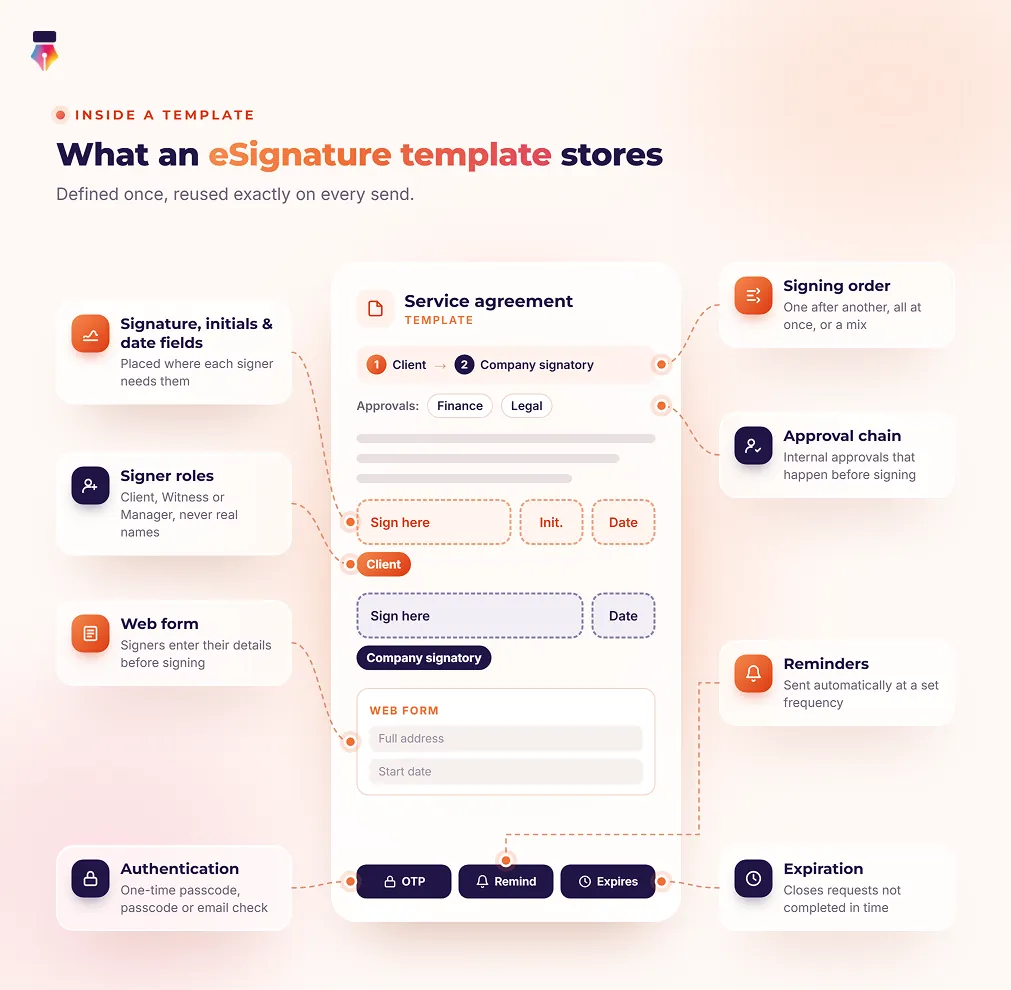
Because routing is saved with the template, it works well with Inkfree's approval workflows: build the approval chain once and every document of that type follows it. Our document approval workflow guide covers how to design that chain.
Which Documents Should You Turn Into Templates?
Turn the documents you send most often, and the ones where a mistake is most costly, into templates first. Not every document needs one. A useful test is to score each document type on two questions:
- How often do we send it? Weekly or more is a strong candidate.
- How costly is a mistake? Documents with legal, financial or compliance consequences benefit most from a fixed, approved version.
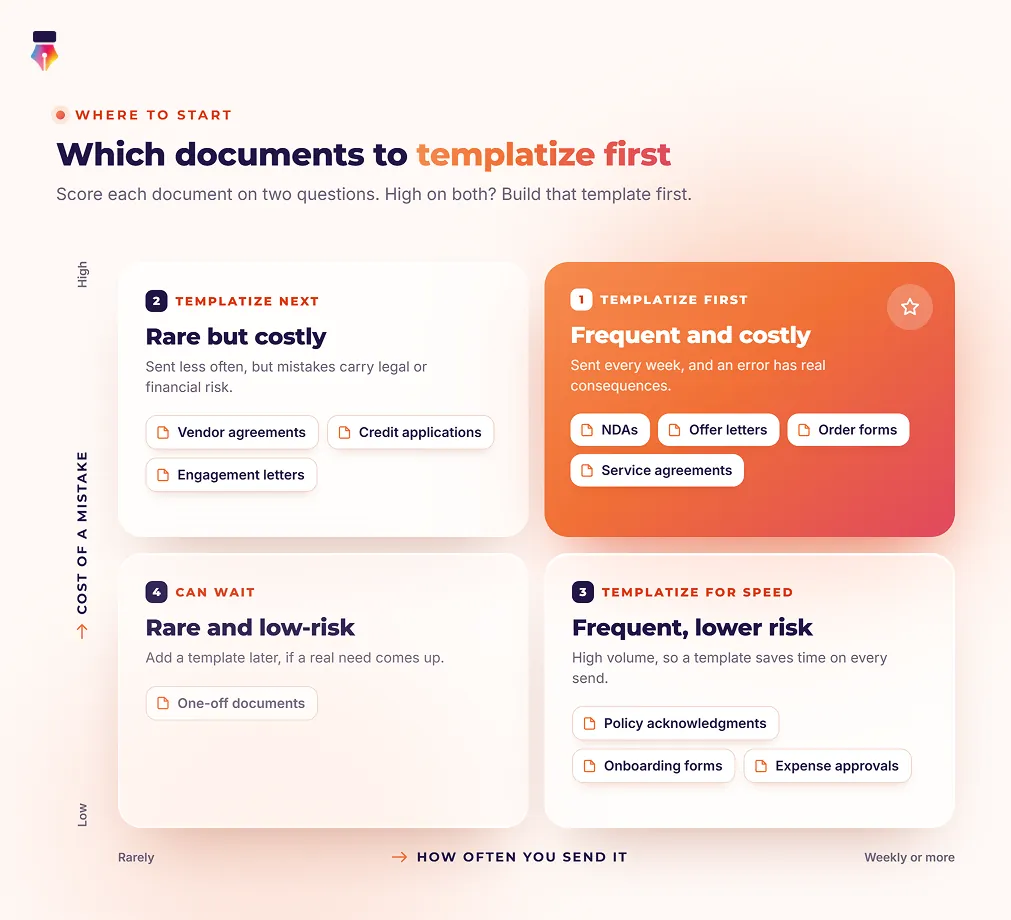
Documents that score high on both should be templatized first. Common examples by team include:
- Sales: NDAs, proposals and quotes, order forms, master service agreements, renewals.
- HR: offer letters, employment agreements, policy acknowledgments, contractor agreements.
- Operations and procurement: vendor agreements, purchase orders, change requests.
- Finance: payment authorizations, expense approvals, credit applications.
- Client services: onboarding forms, engagement letters, consent forms.
- Real estate and property: lease agreements, renewals, tenant applications.
For more ideas about which documents each department sends most, see the documents teams send most.
How to Create a Document Template, Step by Step
Creating a document template takes nine steps, from the approved wording through roles, fields, routing and security to testing and filing. For the exact clicks in Inkfree, see how to create a reusable template.
Step 1: Start From the Approved Version
Begin with the current, legally approved version of the document, not the most recent copy someone happened to send. If legal or management needs to sign off on the wording, do that first.
Step 2: Define Signer Roles
List everyone who needs to act on the document and give each a role name that describes their part, such as "Client," "Company Signatory" or "Witness." Avoid real names. People change jobs; roles do not.
Step 3: Place Fields for Each Role
Add signature, initials and date fields for each role. Put date fields beside signatures so every signature is clearly dated. Only add what the document actually needs: every extra field is one more thing for the signer to complete.
Step 4: Set the Routing
Decide whether signers sign in sequence, in parallel or in a combination. If the document needs internal approval before it goes out, add the approval chain here so it cannot be skipped.
Step 5: Choose Security Settings
Match identity verification to the risk of the document. A policy acknowledgment might need only email verification. A contract with financial terms should require a one-time passcode or passcode. Our help article on choosing signer security compares the options.
Step 6: Write the Email Message
Pre-write the message signers will receive. This keeps tone and instructions consistent, whoever sends the document.
Step 7: Set Reminders and Expiration
Automatic reminders reduce chasing, and an expiration window stops old requests from staying open forever.
Step 8: Test It
Send the template to yourself, and to a colleague if there are several roles, before releasing it to the team. Check every field, every role and the order in which notifications arrive.
Step 9: Name It and File It
Give the template a clear, searchable name and put it in the right folder. More on that below.
Best Practices for Designing Reusable Templates
A template is only useful if people use it and trust it. These practices, drawn from best practices for reusable templates, make the difference:
- Name by document and audience. "Employment Agreement - US" or "MSA - Enterprise" is far easier to find than "Contract v3 final."
- Use role names, not people. A template will still be in use after the people who built it have moved on, so labels such as "Candidate" and "Approver" stay accurate where personal names would not.
- Keep required fields to a minimum. Only make a field required if the document genuinely cannot be completed without it.
- Put dates next to signatures. A dated signature answers the first question any reviewer asks: when was this signed?
- Pre-write the email message. Senders should not have to improvise instructions.
- Test before release. A template with a misplaced field gets copied into every document sent from it.
How Do Web Forms Work With Templates?
A web form collects the signer's details on a simple page before the signature, then drops the answers into the template. Many documents need information from the signer, such as their address, phone number, start date or a selection from a list. Filling in tiny fields scattered across a PDF is fiddly at the best of times, and on a phone screen it is worse.
A web form turns the information a signer needs to provide into a simple, mobile-friendly form. The signer answers the questions, their responses drop into the matching places on the document, and the signing page follows immediately, so the whole job is done in a single sitting. This is the best approach for collecting details before the signature.
In Inkfree, a web form is built from a template and tied to a single signer role, so a template with several roles can have a separate form for each party. Forms can collect text, long text, email, phone, date, dropdown and checkbox answers, while the signature, initials and date-signed fields stay on the document. Web forms are included in the Business plan.
- Use a template on its own when the document is mostly fixed and signers only need to sign.
- Add a web form when signers need to provide information first, such as onboarding paperwork, applications, intake forms, registrations and consent forms.
Can You Bulk Send From a Template?
Yes. Templates are what make high-volume sending possible. When you need to send the same document to many people, such as a policy update to every employee or a renewal to every customer, a template can be used as the basis for a bulk send. Every copy goes out with the same fields, routing and authentication settings, with each recipient getting their own individual document.
Organizing and Maintaining a Template Library
A template library stays useful only if it is organized, access-controlled, reviewed and owned. A handful of templates is easy to manage. Fifty is not, unless you plan for it.
Organize With Folders
Create one folder per process or team, such as Sales, HR and Procurement, with sub-folders where needed. Inkfree lets you group templates however suits your business, whether by department, document type or customer group, and decide folder by folder who can see them. See how to organize templates into folders.
Control Who Can Use What
Not everyone should be able to send every template. Restrict sensitive templates, such as executive employment agreements or settlement agreements, to the people who need them.
Understand How Updates Work
Editing a template should never change a document that is already out for signature. Inkfree applies template changes only to new sends, so agreements in progress keep the settings they started with. Our help article on editing an existing template walks through it.
Review Regularly
Nobody notices a template going stale until the wrong wording reaches a customer. Set a regular review, quarterly works well for most teams, to check wording, fields and routing. Move outdated templates to an Archive folder so nobody sends them by mistake.
Update the Same Day the Law or Policy Changes
When legal updates the wording of an agreement, update the template on the same day. Otherwise, the old wording keeps going out under a template that looks approved.
Give the Library an Owner
Assign someone to own each folder. That person approves new templates, retires old ones and makes sure routing still reflects who actually approves what.
Common Template Mistakes to Avoid
The most common template mistakes come from building too many templates and maintaining too few:
- Too many near-identical templates. If five templates differ only by one clause, consider whether one template with clearer roles would do.
- Real names in roles. The template breaks the day that person leaves.
- Required fields everywhere. Every unnecessary required field slows signers down and increases drop-off.
- No testing. One misplaced signature field is repeated in every document sent from the template.
- Nobody owns the library. Without an owner, outdated templates stay in use indefinitely.
Build Your First Template Free
With Inkfree templates, you set up fields, signer roles, signing order, approvals, authentication, reminders and expiration once, and every document goes out right the first time. Paid plans start with a 14-day free trial, so you can create a free account and build your first template in minutes, or explore Inkfree templates first.
Questions, answered.About building, sending and maintaining eSignature document templates
An eSignature template is a reusable document with signature fields, signer roles and sending settings already configured. To send it, you choose the template, enter the recipients for each role and send, without placing fields or setting up routing again.
A contract template is one type of document template. "Document template" covers any document you send repeatedly, including contracts, offer letters, consent forms, purchase orders and policy acknowledgments.
Yes. A template can define several signer roles, such as Client, Witness and Company Signatory, each with their own fields, and it can save the order in which they sign.
Nothing. In Inkfree, template changes apply only to documents you send afterwards. Anything already out for signature keeps its original settings.
Use a template when signers mainly need to sign. Add a web form when signers need to provide information first, such as personal details or selections, so they can complete it on a simple form and sign in one pass.
As many as you have genuinely different documents, and no more. Start with the documents you send most often and the ones where errors are most costly, then add templates as new needs come up.